Introduction
Buying a new PC is always exciting. I still remember the feeling of turning on a brand new computer for the first time. Everything looked clean, fast, and ready to use. At first, I thought all the software I needed was already installed. After spending a few days with the computer, I realized that Windows alone was not enough for daily work, entertainment, and security.
Over the years, I have set up many computers for myself, family members, and friends. Every time I start with the same process of installing a few essential programs that make the PC more useful, secure, and enjoyable. These applications save time, protect important files, and improve the overall experience.
If you have recently purchased a new desktop or laptop, this guide will help you install the software that I personally consider essential. These are the programs that I never skip because they make everyday tasks much easier.
A Reliable Web Browser
The first thing I usually install is a web browser. While Microsoft Edge has improved a lot, I still like having another browser that matches my personal preferences.
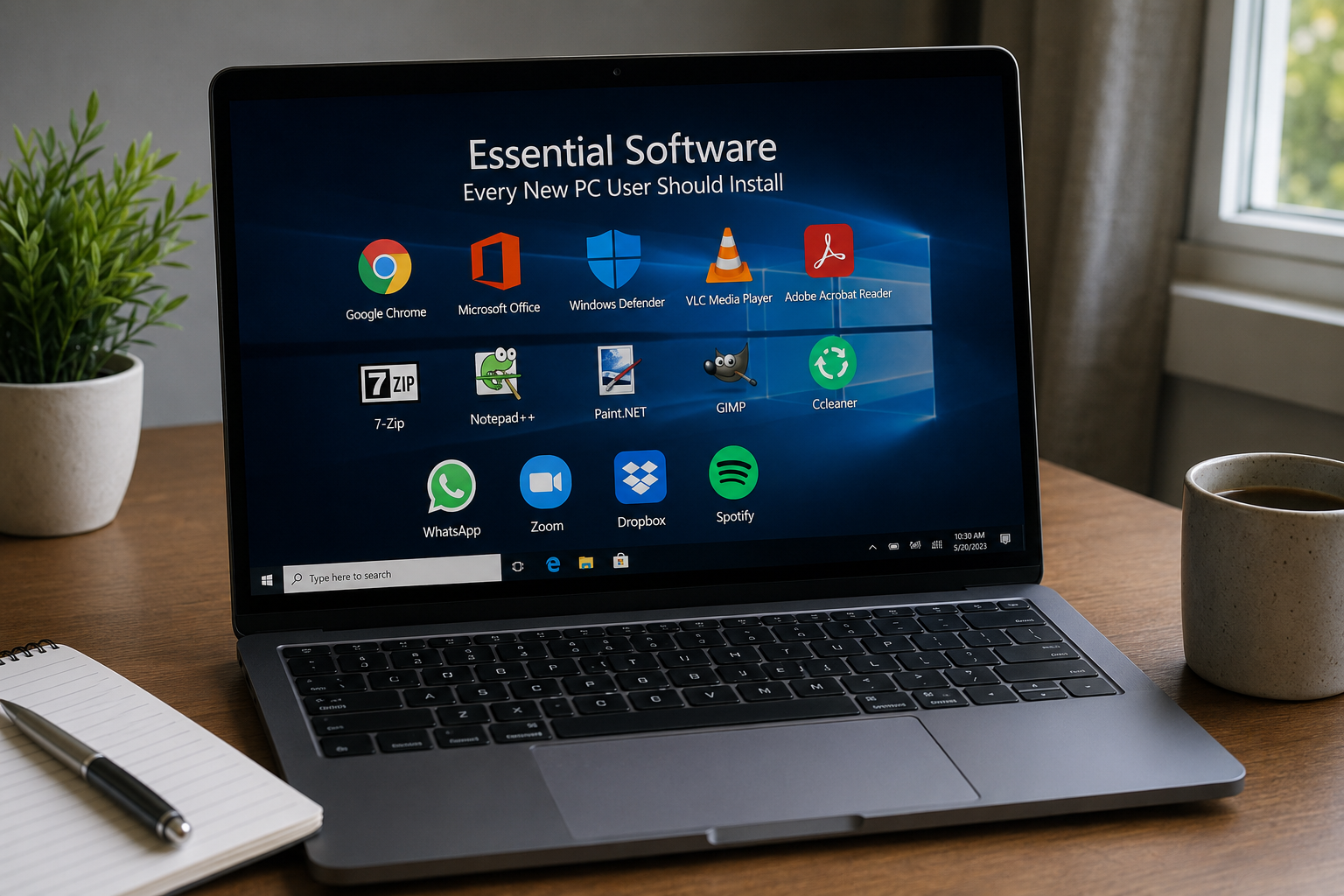
Google Chrome is a popular choice because it is fast, supports thousands of extensions, and works well with Google services. Mozilla Firefox is another excellent option if you value privacy and customization. Brave is also becoming more popular because it blocks many ads and trackers automatically.
A good browser becomes the center of almost everything we do online. Whether I am researching information, watching videos, shopping, or working, I spend a large part of my day inside a browser.
Microsoft Office or an Office Alternative
Almost everyone eventually needs to create documents, spreadsheets, or presentations. Whether you are a student, freelancer, or office worker, office software becomes necessary sooner or later.
Microsoft Office remains the industry standard and includes Word, Excel, and PowerPoint. However, if you do not want to pay for a subscription, LibreOffice is a fantastic free alternative that handles most common document formats very well.
I personally use office software almost every day for writing articles, organizing information, and managing simple budgets. Installing it early saves time later when an important document suddenly needs to be created.
Antivirus Software
One lesson I learned years ago is that computer security should never be ignored. Although Windows Defender provides solid protection, adding another trusted antivirus solution can give extra peace of mind if you frequently download files from different sources.
Programs like Bitdefender, Norton, and ESET offer additional security features such as phishing protection, ransomware defense, and safe browsing tools.
No antivirus is perfect, but combining good security software with safe browsing habits greatly reduces the chances of malware infections.
Password Manager
Remembering dozens of strong passwords is nearly impossible. Earlier, I used similar passwords for many accounts, and looking back, I realize that was a huge mistake.
A password manager changed everything for me. It generates strong passwords, stores them securely, and fills them in automatically whenever I log into websites.
Bitwarden is an excellent free option, while 1Password and Dashlane offer premium features for users who need more advanced tools.
Using unique passwords for every account has become effortless since installing a password manager.
Cloud Storage Software
Losing important files can be heartbreaking. That is why I always install cloud storage software immediately after setting up a new PC.
Google Drive, OneDrive, and Dropbox automatically synchronize important folders with cloud storage. If the computer crashes or gets stolen, my important documents remain safe online.
I especially appreciate automatic backups because they happen quietly in the background without requiring constant attention.
PDF Reader
Sooner or later everyone receives PDF files. Job applications, manuals, invoices, eBooks, and official forms often come in PDF format.
Adobe Acrobat Reader remains the most recognized option, but lightweight alternatives like Sumatra PDF open documents much faster and consume fewer system resources.
Having a reliable PDF reader installed prevents unnecessary frustration when opening important files.
VLC Media Player
Windows includes a basic media player, but it cannot always play every video format.
VLC Media Player has been my favorite media application for years because it supports almost every video and audio format without requiring additional codecs.
Whether I am watching movies, training videos, downloaded lectures, or listening to music, VLC handles everything smoothly. It is one of those applications I recommend to every new PC owner.
File Compression Software
Compressed files are everywhere. Software downloads, project files, backups, and email attachments often come in ZIP, RAR, or 7Z formats.
Windows supports ZIP files, but I prefer installing 7 Zip because it works with many more archive formats while remaining lightweight and completely free.
Whenever I receive compressed files from clients or friends, having 7 Zip already installed saves valuable time.

Image Editing Software
Not everyone needs professional editing software, but almost everyone edits images occasionally.
Sometimes I simply need to crop a screenshot, resize a picture, or adjust brightness before sharing it online.
Paint.NET offers an excellent balance between simplicity and useful editing features. GIMP provides advanced editing tools for users who need more professional capabilities without paying for expensive software.
Installing one image editor early prevents searching for one whenever a quick edit becomes necessary.
Communication Applications
Communication has become an essential part of everyday computing.
Depending on your needs, applications like Zoom, Microsoft Teams, Discord, or Slack help you attend meetings, collaborate with coworkers, or stay connected with family and friends.
I have attended online interviews, training sessions, client meetings, and virtual family gatherings using these applications. Having them installed beforehand avoids last minute downloads before important meetings.
Note Taking Software
Ideas often appear unexpectedly. Whenever I remember something important, I like writing it down immediately.
Microsoft OneNote is excellent for organizing notes into notebooks, while Notion combines note taking with project management. Evernote also remains a reliable option for keeping everything organized.
A good note taking application becomes surprisingly valuable over time because it stores ideas, reminders, research, and personal information in one place.
Backup Software
Many people only think about backups after losing important files. Unfortunately, by then it is already too late.
Windows includes backup features, but dedicated backup software offers more flexibility and automation.
Macrium Reflect and EaseUS Todo Backup allow users to create complete system backups that can restore the entire computer if something goes wrong.
Since I started making regular backups, I no longer worry as much about hardware failures or accidental file deletion.
File Recovery Software
Accidentally deleting important files happens more often than most people expect.
Having recovery software installed before disaster strikes can sometimes save documents, photos, or videos that would otherwise be permanently lost.
Recuva is one of the easiest recovery tools I have used. Thankfully, I have only needed it a few times, but when I did, it recovered several important files that I thought were gone forever.
Screenshot Tool
Taking screenshots is something I do almost daily.
Windows Snipping Tool works well, but applications like ShareX offer far more features, including scrolling screenshots, annotations, and automatic uploads.
Whenever I create tutorials or explain technical problems, a good screenshot application becomes incredibly useful.
Download Manager
Large downloads occasionally fail because of unstable internet connections.
A download manager such as Free Download Manager helps pause, resume, and organize downloads efficiently.
When downloading large software packages or videos, I appreciate not having to restart everything if the internet disconnects unexpectedly.
System Cleaning Utility
Over time, temporary files, installation leftovers, and unnecessary cache files begin consuming storage space.
Tools like CCleaner help remove unnecessary files and free valuable disk space. However, I always use cleaning utilities carefully and avoid deleting anything unless I understand its purpose.
Combined with Windows built in maintenance tools, occasional cleaning helps keep the computer running smoothly.
Hardware Monitoring Software
Understanding your computer’s hardware can help identify potential problems before they become serious.
Applications such as HWMonitor display CPU temperatures, fan speeds, and voltage information.
Whenever I notice unusual performance or overheating, checking these statistics often provides useful clues about what might be causing the issue.
Internet Security Habits Matter More Than Software
Installing good software is only part of keeping a computer safe.
I always avoid downloading programs from unknown websites. I keep Windows updated, enable automatic updates whenever possible, and stay cautious with suspicious emails and unexpected attachments.
Even the best security software cannot fully protect someone who ignores basic online safety practices. Smart decisions remain the strongest defense.
Do Not Install Too Much Software Immediately
One mistake I made with my first computer was installing dozens of applications simply because they looked interesting.
Many of those programs were never used again and only consumed storage space and system resources.
Now I prefer installing only the software I truly need. If a new requirement appears later, I install the appropriate application at that time. This approach keeps the system cleaner and easier to manage.
Keep Everything Updated
Software updates may seem annoying, but they often include important security fixes, performance improvements, and bug corrections.
I regularly check for updates for Windows, browsers, antivirus software, and other important applications. This simple habit keeps my computer running more securely and efficiently.
Ignoring updates for months can expose the system to vulnerabilities that have already been fixed by developers.
Conclusion
Setting up a new PC properly makes a huge difference in the overall experience. From web browsers and office software to antivirus protection and cloud storage, every application serves a practical purpose that improves productivity, security, and convenience.
Over the years, I have learned that choosing quality software is far more important than installing a large number of applications. A carefully selected collection of trusted programs creates a computer that is faster, safer, and easier to use every day.
If you are setting up a new computer today, start with these essential tools and gradually add more software as your needs grow. This approach has worked well for me on every new PC I have owned, and it continues to provide a reliable, organized, and enjoyable computing experience.