When I bought my first desktop computer, I honestly had no idea what was inside it. I knew how to turn it on, browse the internet, and play games, but if someone asked me what a processor or RAM actually did, I could not explain it. Over time, I became curious and started learning about each computer component. The more I learned, the more confident I became in solving simple problems, upgrading my PC, and choosing better hardware.
If you are just starting your journey into computers, do not worry. Understanding computer components is much easier than it sounds. Once you know what each part does, everything starts making sense. In this guide, I will explain the main computer components in simple English based on what I have learned through experience.
Why It Is Important to Understand Computer Components
Many people use computers every day without knowing what is inside them. While that is perfectly fine, having basic knowledge gives you many advantages.
I noticed that after learning about computer components, I stopped getting confused by technical terms. Shopping for a laptop became easier because I knew what specifications actually mattered. I also saved money because I could upgrade certain parts instead of buying an entirely new computer.
Understanding hardware also helps when your computer becomes slow. Instead of guessing the problem, you can often identify which component needs attention.
The Motherboard
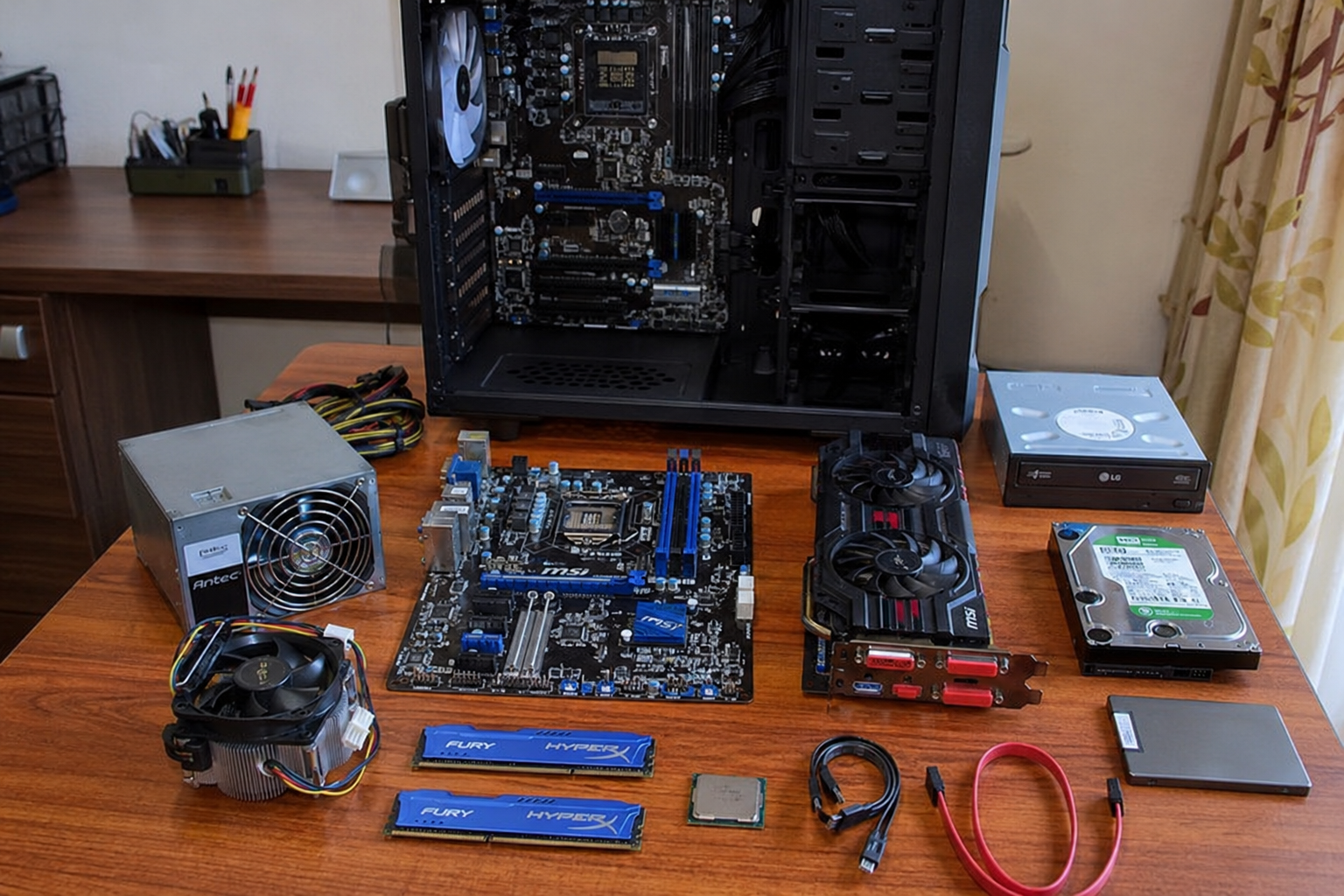
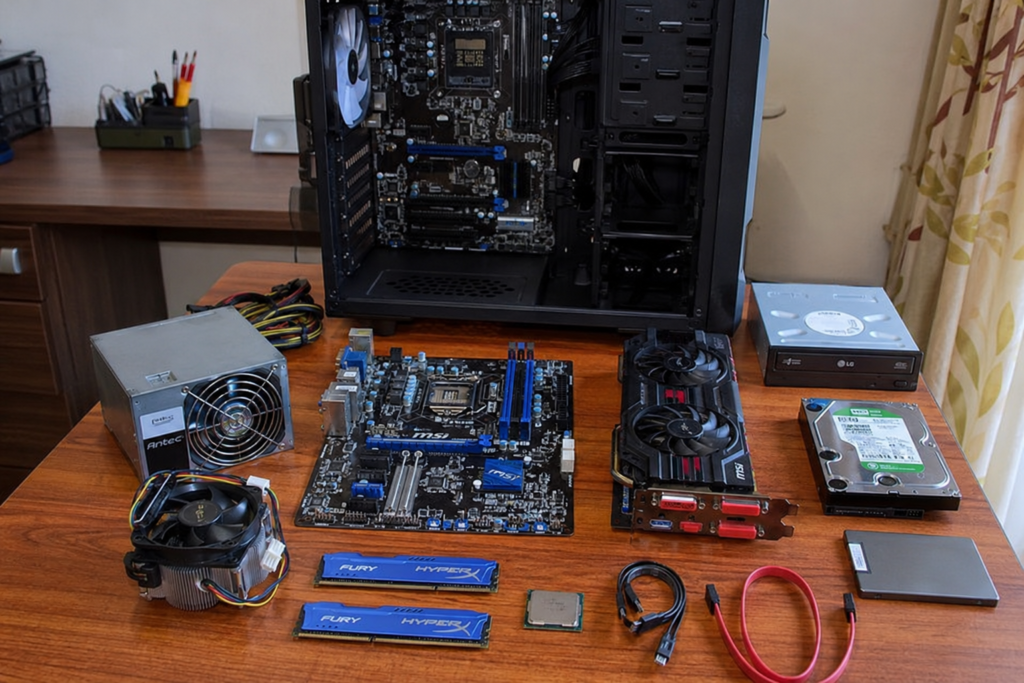
The motherboard is the main circuit board inside a computer. I like to think of it as the foundation of a house. Every important component connects to it, and it allows all the parts to communicate with each other.
When I first opened my desktop case, the motherboard looked complicated with its many slots and connectors. After learning about it, I realized it simply acts as the central hub.
A motherboard connects the processor, memory, storage drives, graphics card, cooling system, and power supply. Without it, none of the components could work together.
Modern motherboards also include ports for USB devices, audio connections, internet cables, and sometimes even built in WiFi.
The Central Processing Unit
The CPU, also known as the processor, is often called the brain of the computer. This is one comparison that I actually found helpful when I was learning.
Every task your computer performs goes through the processor. Whether you are opening a browser, editing photos, watching videos, or playing games, the CPU is constantly working behind the scenes.
I remember upgrading from an older processor to a newer one, and the difference was amazing. Programs opened faster, multitasking became smoother, and overall performance improved significantly.
A processor with more cores and better speed usually performs better, especially for demanding work like video editing or programming.
Random Access Memory
RAM is another component that confused me at first. I thought it was the same as storage, but they serve completely different purposes.
RAM is temporary memory that stores information your computer needs right now. The more RAM your computer has, the more tasks it can handle at the same time.
I noticed this when I upgraded from 8 GB to 16 GB of RAM. Before the upgrade, opening many browser tabs slowed everything down. After installing more RAM, switching between applications became much smoother.
Unlike storage, RAM is cleared every time you shut down your computer.
Storage Drives
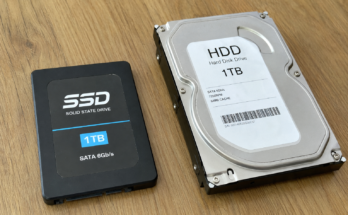
Your storage drive is where your operating system, applications, documents, photos, videos, and games are permanently saved.
There are two main types of storage.
Hard Disk Drive
A Hard Disk Drive, often called an HDD, uses spinning disks to store information.
My first computer had an HDD. It worked well, but it took a long time to start Windows and open large applications.
The biggest advantage of HDDs is that they offer a lot of storage space for a lower price.
Solid State Drive
A Solid State Drive, known as an SSD, has no moving parts. It stores data electronically, making it much faster.
When I upgraded my computer to an SSD, it honestly felt like buying a brand new machine. Windows started within seconds, applications opened almost instantly, and everything became more responsive.
If I could recommend only one computer upgrade for beginners, it would definitely be installing an SSD.
Graphics Processing Unit
The Graphics Processing Unit, or GPU, is responsible for creating images, videos, and animations that appear on your screen.
If you mainly browse the web, watch videos, or use office software, the graphics built into many processors are usually enough.
However, if you enjoy gaming, video editing, graphic design, or 3D modeling, a dedicated graphics card makes a huge difference.
The first time I played games using a dedicated graphics card, I immediately noticed smoother gameplay, higher image quality, and much better overall performance.
Power Supply Unit
The Power Supply Unit, commonly called the PSU, converts electricity from the wall into power that every computer component can safely use.
Many beginners ignore the power supply, but I learned that it is one of the most important components.
A high quality power supply protects your computer from electrical problems and provides stable power for all hardware.
Choosing a cheap power supply might save money initially, but it can create problems later if it cannot provide reliable power.
Cooling System
Computers generate heat whenever they are running. Without proper cooling, components become too hot, which reduces performance and may shorten their lifespan.
Most computers use fans to move hot air out of the case and bring cool air inside.
Some high performance computers also use liquid cooling systems.
I regularly clean dust from my computer because even a small amount of dust can block airflow. After cleaning, I often notice lower temperatures and quieter operation.
Good cooling helps every component perform at its best.
Computer Case
The computer case holds all the components together and protects them from dust and accidental damage.
At first, I thought the case was only about appearance. Later, I realized that a well designed case improves airflow, makes upgrades easier, and keeps cable management organized.
A spacious case also gives you more room for future upgrades.
Monitor
The monitor displays everything your computer creates.
When I upgraded from an older monitor to a higher resolution display, text became sharper, colors looked more accurate, and working for long hours felt much more comfortable.
For gamers, higher refresh rates provide smoother movement, while creative professionals often prefer monitors with excellent color accuracy.
Choosing the right monitor depends on how you plan to use your computer.
Keyboard and Mouse
These are the primary input devices that allow you to control your computer.
Although they seem simple, using comfortable peripherals makes a big difference during long work sessions.
I spent years using a basic keyboard before trying a mechanical one. Typing became more enjoyable, and I noticed fewer mistakes because the keys felt more responsive.
Similarly, choosing a comfortable mouse reduces hand fatigue during extended use.
Network Components
Most computers connect to the internet through either Ethernet or WiFi.
An Ethernet cable usually provides faster and more stable internet speeds.
WiFi offers the convenience of wireless connectivity, making it perfect for laptops and homes where running cables is difficult.
I personally use Ethernet whenever possible because online gaming and large downloads are generally more stable.
Sound Components
Computers also include audio hardware that allows you to hear music, videos, games, and voice calls.
Many motherboards already have built in audio systems that work perfectly for everyday use.
If you enjoy music production or professional audio editing, you may eventually consider a dedicated sound card or external audio interface.
For regular users, built in audio is usually more than enough.
Expansion Slots
One feature I did not understand when I first looked inside a computer was the expansion slots.
These slots allow you to install additional hardware such as graphics cards, WiFi adapters, capture cards, or storage controllers.
This flexibility is one reason why desktop computers are easy to upgrade over time.
Instead of replacing the whole computer, you can simply add new components as your needs change.
BIOS and Firmware
Before the operating system starts, your computer loads software called BIOS or UEFI firmware.
This software checks that all hardware is functioning correctly before Windows or another operating system begins loading.
I rarely enter the BIOS, but it can be useful for changing boot order, enabling hardware features, or monitoring system temperatures.
Although beginners do not need to change these settings often, it is helpful to know they exist.
How All Components Work Together
One thing that helped me understand computers was realizing that every component has a specific job.
The power supply provides electricity.
The motherboard connects everything.
The processor handles calculations.
RAM stores temporary working data.
The storage drive saves files permanently.
The graphics card creates images.
The cooling system keeps temperatures under control.
The monitor displays information.
The keyboard and mouse allow you to interact with the computer.
When all these parts work together, your computer performs every task you ask it to do.
Common Mistakes Beginners Make
When I first started learning about computers, I believed more storage automatically meant better performance. Later, I learned that storage capacity and storage speed are two different things.
Another mistake is focusing only on the processor while ignoring RAM or storage. A balanced system usually performs much better than one with only a powerful CPU.
Some beginners also forget about cooling or buy a very cheap power supply. Both decisions can affect long term reliability.
I also learned not to purchase hardware based only on advertisements. Reading reviews and understanding specifications leads to much smarter buying decisions.
Tips for Choosing Computer Components
If you are building or buying a computer, start by deciding how you will use it.
For everyday browsing and office work, a mid range processor, 8 GB to 16 GB of RAM, and an SSD provide excellent performance.
For gaming, invest in a good graphics card along with a capable processor and sufficient RAM.
For video editing or professional creative work, prioritize a powerful CPU, more memory, fast SSD storage, and reliable cooling.
Always leave room for future upgrades because your needs may grow over time.
Final Thoughts
Learning about computer components completely changed the way I look at technology. What once seemed confusing now feels simple because every part has a clear purpose. You do not need to become a hardware expert overnight. Even understanding the basics can help you make smarter buying decisions, solve common computer problems, and feel more confident using technology.
My advice is to stay curious and keep learning one component at a time. Open your computer if you have the opportunity, watch how the parts fit together, and relate what you learn to your everyday experience. Before long, technical terms that once sounded complicated will become familiar, and computers will feel much less intimidating. Understanding computer components is one of the best first steps for anyone who wants to become more comfortable with modern technology.